Changing email clients or transferring your data between various operating systems may sometimes seem like an impossible mission. Probably one of the most popular issues Mac users have is handling PST files.
PST files belong to Microsoft Outlook proprietary format that is mainly used for Windows operating system. If you have just started using Mac and somebody shared with you some Outlook backup, it will be impossible for you to open it directly on your Mac in your Apple Mail, Mozilla Thunderbird, or Airmail. The only way to handle this issue is to convert a PST file into EML format.
In this article, we will explain why you need this conversion, consider possible manual options, and share an advanced solution that is MacMister PST Converter for Mac.
Why Convert PST to EML on Mac?
Knowing the "why" before knowing the "how" can be quite helpful.
- Platform Independence: The EML file format is a universal format for an individual email message that is supported out of the box by Apple Mail, Thunderbird, Microsoft Outlook for Mac, and virtually all other widely used email clients.
- MS Outlook is not Needed: In contrast to PST files, which need to be viewed through the Microsoft Outlook application, EML files can be viewed right from the Mac via Quick Look or simply opened using a double-click.
- Ensures Data Integrity: EML conversion allows retention of all the email attributes intact: the header information and attachment included.
Method 1: The Manual Approach (Via Outlook for Mac)
For those users who use Microsoft 365 or an independent version of Outlook for Mac, it is possible to complete the procedure manually. Nevertheless, keep in mind that such a manual approach may be extremely lengthy when dealing with several hundred or thousand emails.
Steps to Manually Convert PST to EML
- Launch Outlook on Mac, then select File > Import > Outlook for Windows archive file (.pst), and choose the required file.
- Then minimize Outlook, create a folder on your Mac desktop, and name it "Converted Emails."
- The next step will be opening the folder in the imported Outlook account, selecting all desired messages and dragging them to the created desktop folder.
Please keep in mind that Outlook for Mac saves dragged messages in the EML format. However, while it works well for just 5 or 10 emails, it is very time-consuming and unreliable when there are many messages.
Method 2: The Professional Solution – MacMister PST Converter for Mac
For those looking for a fast, secure, and bulk conversion approach without having to install Outlook on their system, a dedicated tool becomes essential. One such highly recommended utility for this purpose is the MacMister PST Converter for Mac.
This particular program overcomes the shortcomings associated with manual dragging and dropping of files, enabling users to convert thousands of email messages in a matter of minutes from PST to EML format.
Key Features of MacMister PST Converter:
- Capability to convert several large PST files into EML format at once.
- There is no requirement for having Microsoft Outlook software installed in your Mac PC for performing conversions.
- It helps to preserve your inbox, outbox, and personalized folders in the same original format after converting them.
- Fully secure extraction and embedding of attachments into their respective EML file.
- Provides facility to perform selective conversion in case you wish to select specific dates or particular folders from your PST archive.
Step-by-Step: How to Use MacMister PST Converter to Export PST to EML
Using this tool is relatively easy, regardless of your level of technical knowledge. This is how to use the software:
Step 1: Go to the official site and download MacMister PST Converter for Mac. Install it on your computer and open the software.
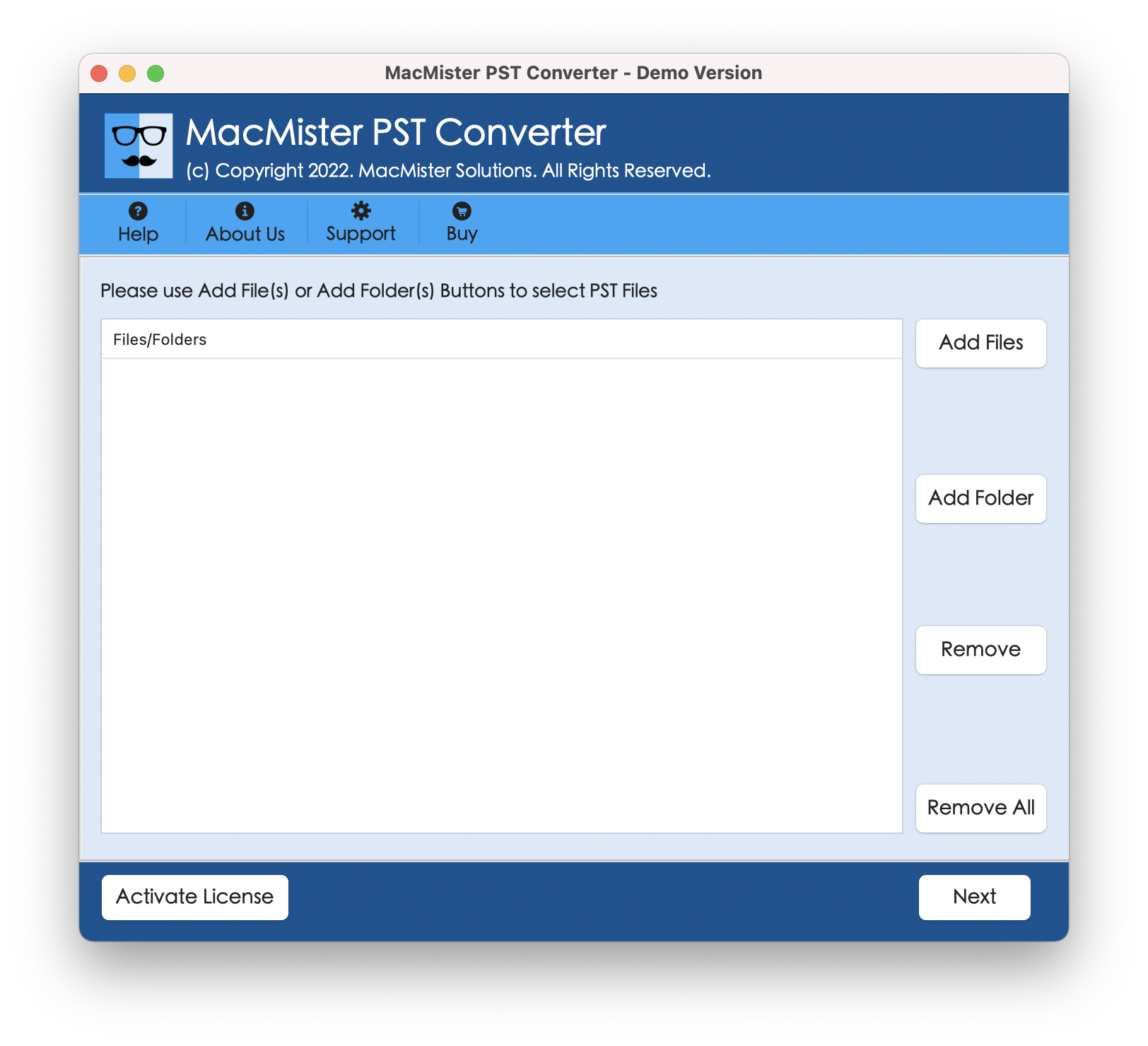
Step 2: You can either click on the Add Files(s) or Add Folder option and find the desired PST file to convert from the directories of your Mac's file system. Once you locate the desired PST file, add it to the software.
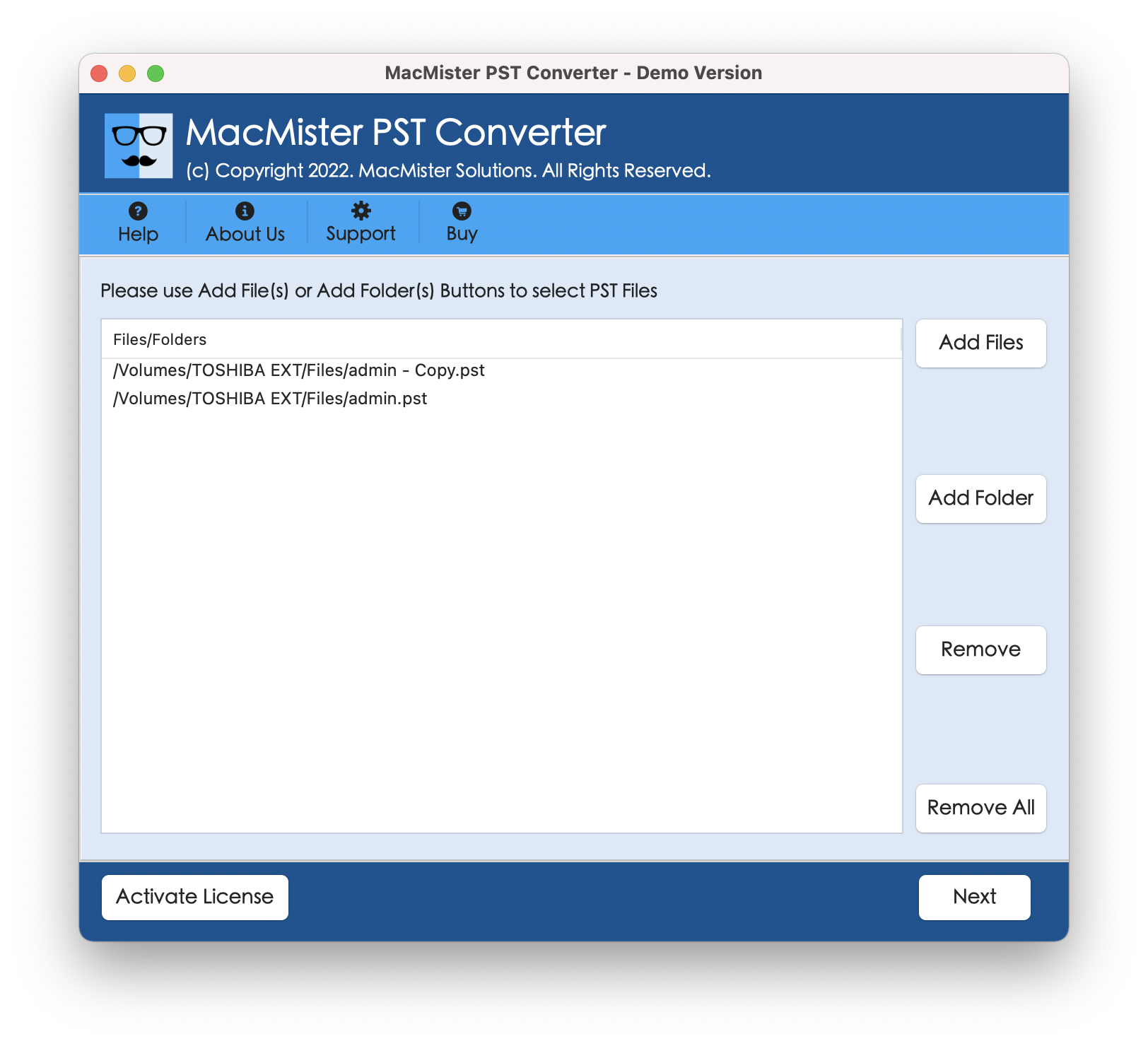
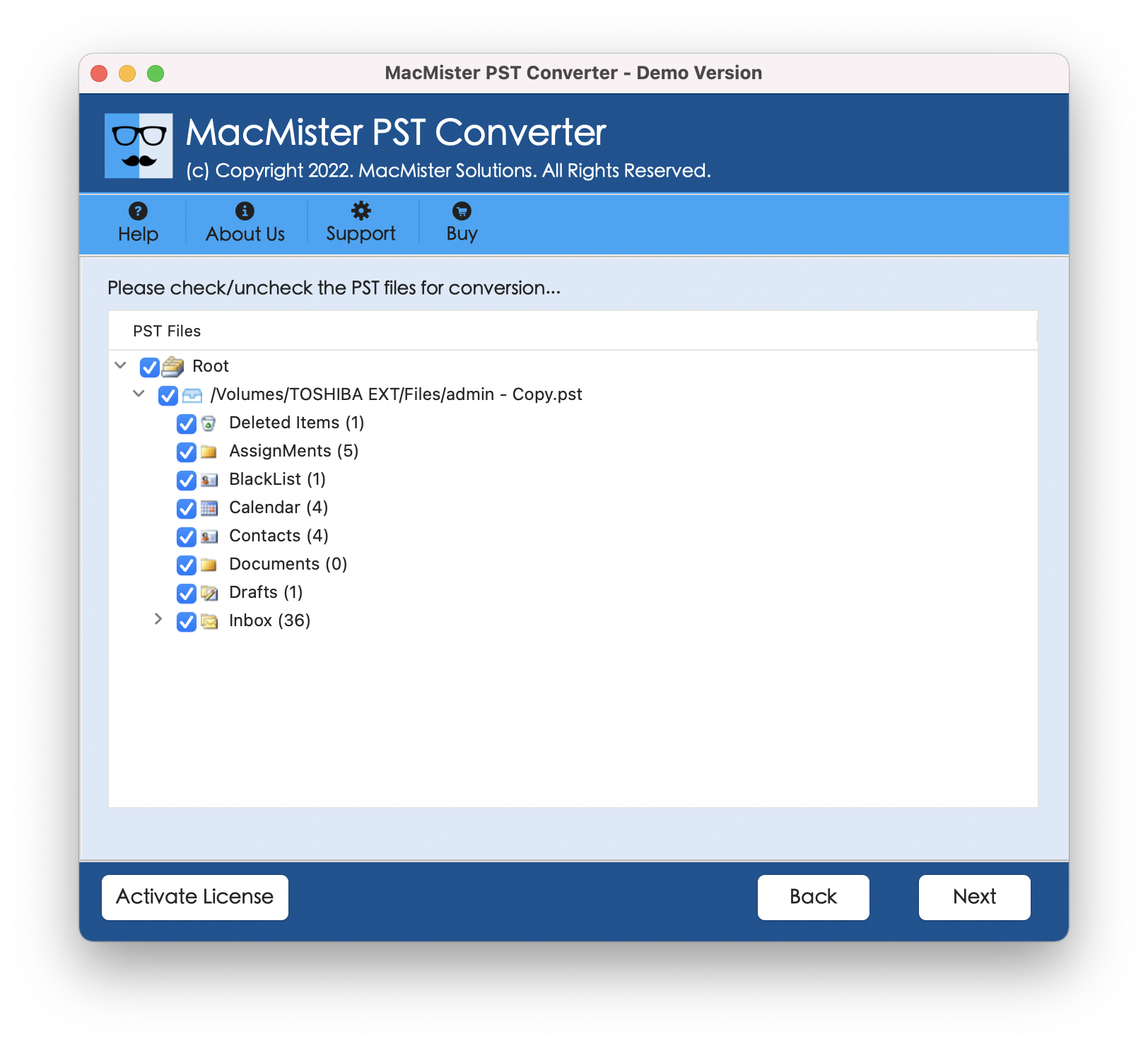
Step 3: Once you do this, the program shows you the preview of your PST folders. Tick the check box next to the folder that you want to convert and tap Next.
Step 4. Then navigate to the drop-down menu and choose EML.
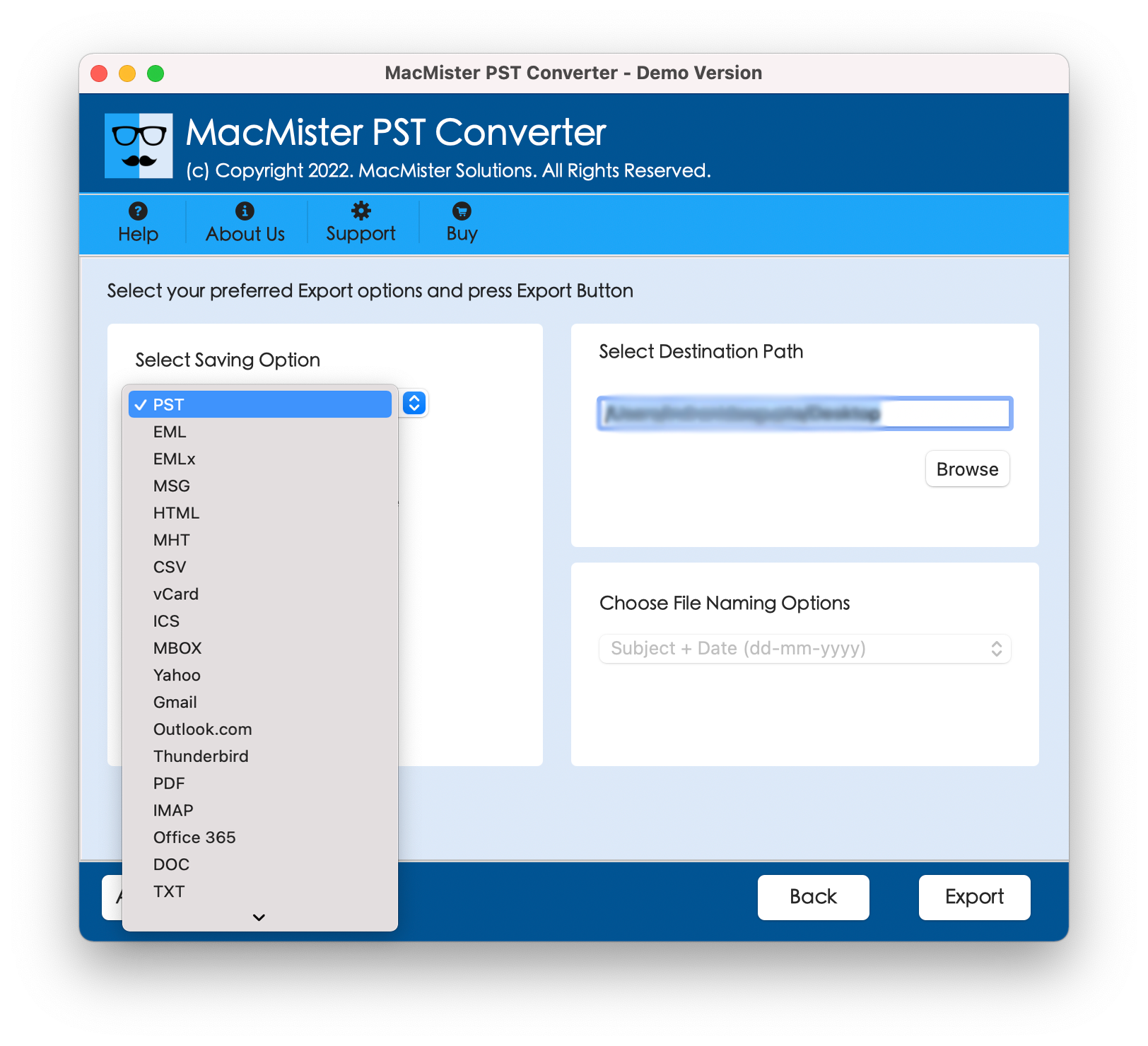
Step 5: After clicking Browse, select the directory where you would like the new EML files to be saved. Set other options as per requirements.
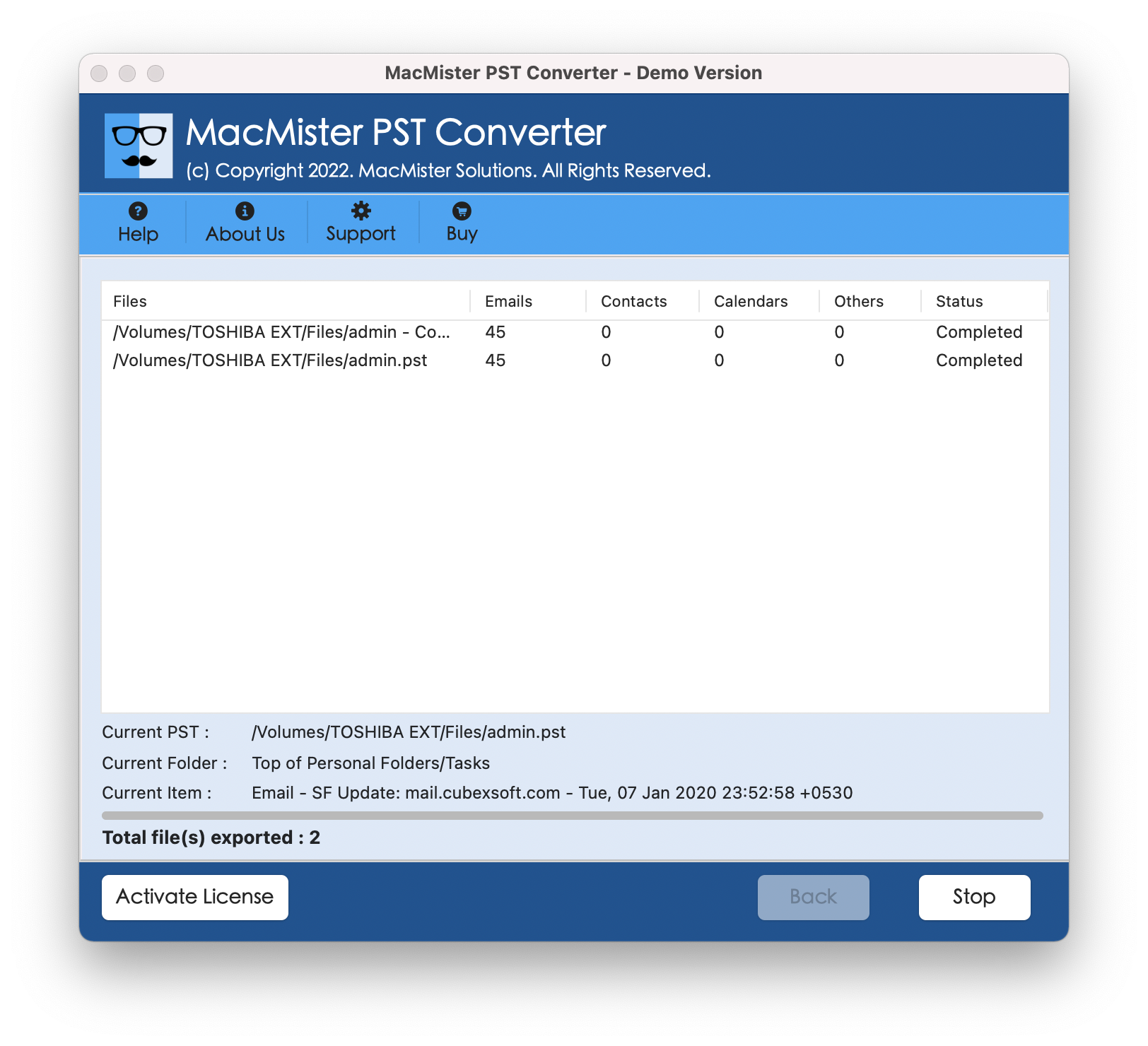
Step 6: Lastly, hit the Export button and see the process being done live. A report indicating progress and the number of items being converted is displayed on-screen.
Import EML into Necessary Email Applications
After MacMister is done with its function, you will have a perfectly arranged folder with many .eml files. If you wish to see these files on your Mac computer, follow these steps:
- Open your Apple mail, click File and then Import Mailboxes. Choose “Files in EML format” and point it to the folder that has been created.
- Drag-and-drop the EML files into any Mozilla Thunderbird folder.
- Select any EML file from your Finder and hit the Spacebar key to preview the message.
Conclusion
Converting a PST file from Windows to the Mac-compatible EML format does not need to be difficult anymore. Although you can try the manual process through dragging and dropping via Outlook for Mac, it simply cannot accommodate large-scale migrations.
Using an EML converter such as MacMister PST Converter for Mac makes everything easy since it saves time, guarantees no data loss during conversion, and maintains the integrity of your files and folders even after the migration.


Share this page with your family and friends.